Organizer (Enterprise)
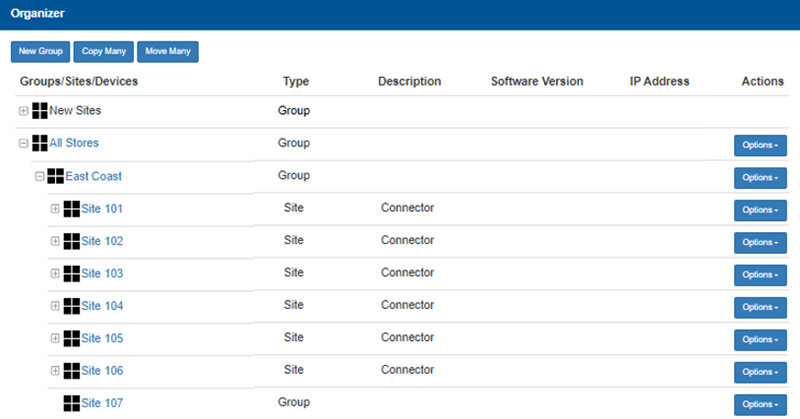
The Organizer panel provides the ability to edit and assign real and virtual groups for the kiosks and sites. All newly installed kiosks will appear in the Unassigned Kiosks group. directorX Support will automatically create and organize groups by region, kiosk type, etc. Once created, you may add or edit an existing group.
New Group
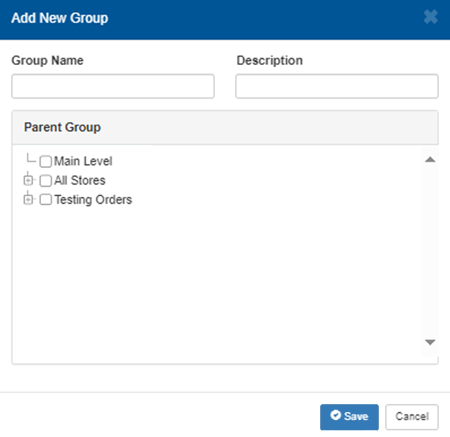
The New Group function provides the ability to create a new group in the organizer. When selected, it opens an Add New Group dialog, which can be used to configure the group's name, provide a description, and select the sites, groups, and devices that belong to it. Use this to build logical collections of sites (for example by region or account) that make management and reporting easier.
Group Name
The Group Name field provides the ability to configure the name of the group.
Description
The Description field provides the ability to provide additional information about the group to help identify it.
Parent Group
The Parent Group section provides the ability to select the sites, groups, and devices that belong to the group.
Save
The Save function adds the new group and closes the dialog.
Cancel
The Cancel function terminates the new group configuration and closes the dialog.
Copy Many
The Copy Many function provides the ability to bulk copy a group. It duplicates selected sites or devices into another group or configuration, streamlining repetitive setup tasks.
Move Many
The Copy Many function provides the ability to move a group. Use it to reassign selected sites or groups or devices to a different group in one operation, useful for reorganizing or consolidating groups.
Organizer List
The Organizer List provides a list of all groups, sites, and devices, with basic information for each.
Groups / Sites / Devices
The Groups / Sites / Devices column provides the hierarchical list of groups, sites, and devices. Groups contain sites (and possibly subgroups); sites represent individual carwash locations and may expand to show devices. Use the expand/collapse controls to reveal or hide child items and to navigate the structure.
Expand / Collapse Controls
Small icons next to group rows provide the ability to expand or collapse the group to show or hide contained sites/devices. Icons next to sites/devices indicate item type and may provide quick visual cues (for example, device vs. group).
Type
The Type column identifies each row as either a Group, Site, or Device. This tells you whether the entry is a container (group) or a concrete location/device (site), and helps determine which actions are available.
Description
The Description column provides additional information about the group (if configured). For a site or device this often shows the device role or connector type (for example "Connector"); for groups it may be an administrative note or summary.
Software Version
The Software Version column provides the installed software or firmware version for the site/device shown in the row. Use this to verify whether devices are up to date or require upgrades.
IP Address
The IP Address column provides the network IP address assigned to the site’s device (if applicable). This helps with network troubleshooting and remote access identification.
Actions
The Actions column provides an Options function for each row.
Options
The Options function provides the ability to edit or manage the corresponding group, site, or device.
Updated: 042726