Scheduled Tasks (Tools)
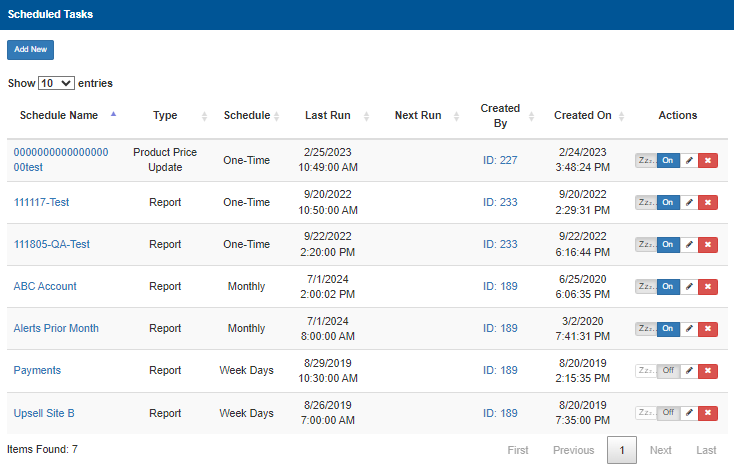
The Scheduled Tasks panel allows the user to schedule tasks. Currently, Scheduler only supports the scheduling of reports. Scheduler will maintain a master list of all tasks currently scheduled to be executed.
Add New
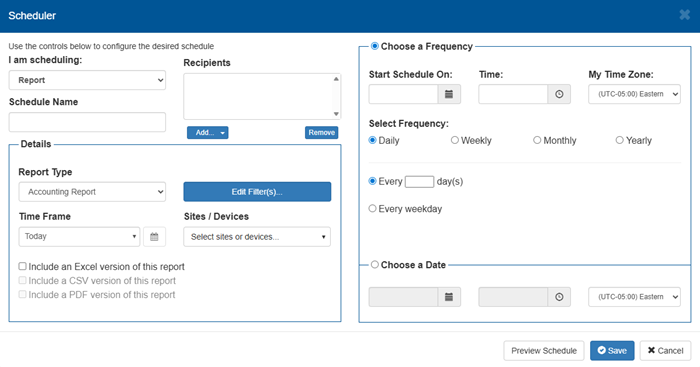
The Add New function opens the Scheduler dialog, which provides the ability to create and configure a new scheduled task.
I am scheduling
The I am scheduling setting provides the ability to specify the type of task to schedule. There are 6 types of tasks that can scheduled.
- Report
- Software Update
- Password Reset
- Price Update
- Promotion Update
- Video Update
Report
The Report scheduled task provides the ability to schedule the generation and distribution of any DirectorX reports.
Software Update
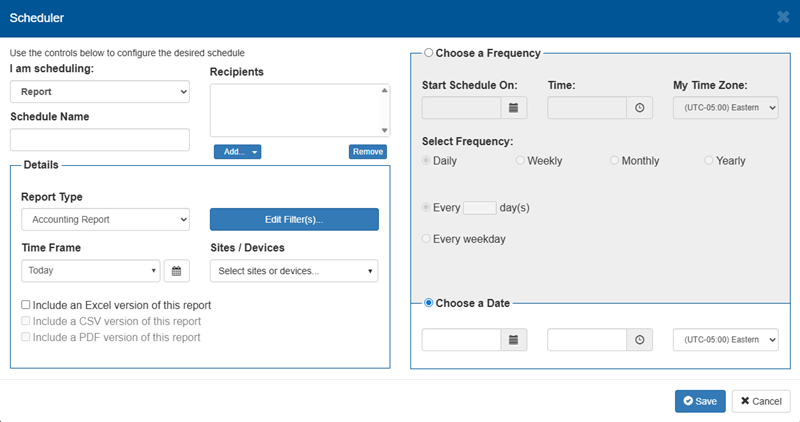
The Software Update scheduled task provides the ability to schedule the installation of a pending software update. Use it to schedule the installation of a software update after close of business.
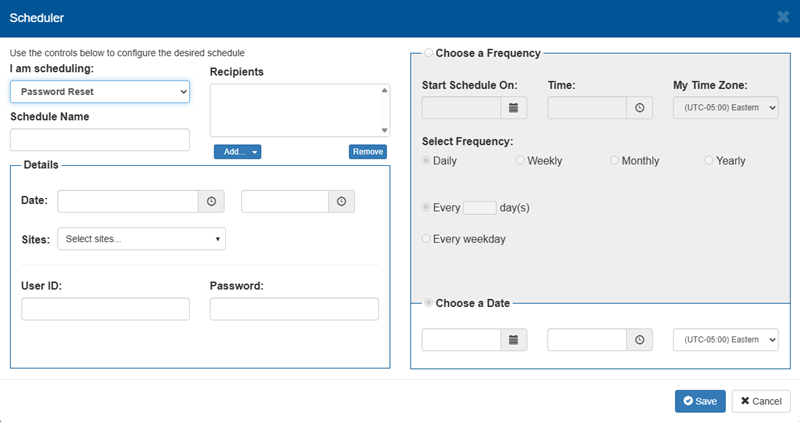
Password Reset
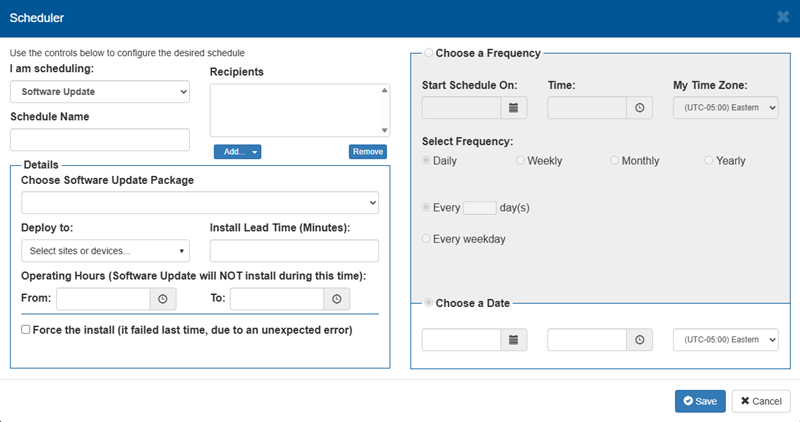
The Password Reset scheduled task provides the ability to schedule the forced reset of a specific user's password at a specific date and time.
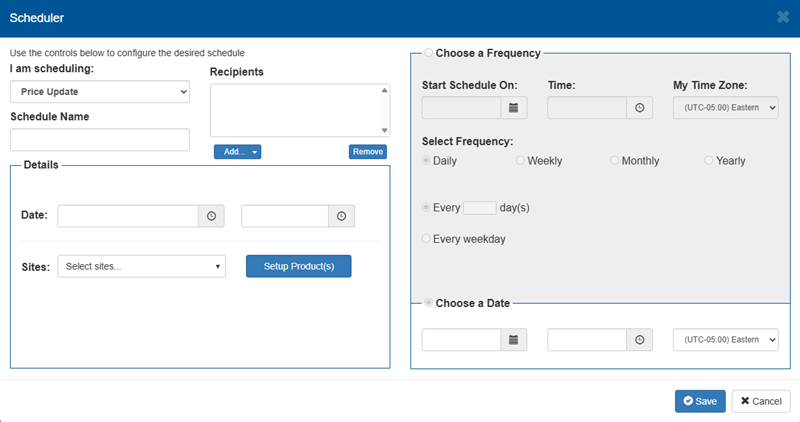
Price Update
The Price Update scheduled task provides the ability to schedule a planned price change to take effect at a specific date and time.
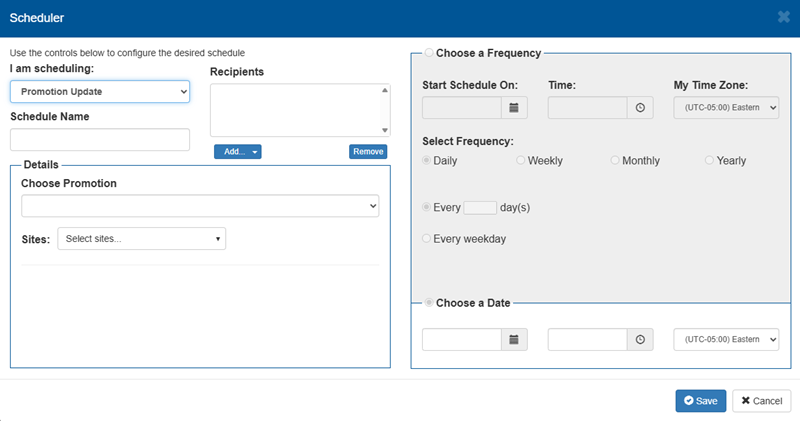
Promotion Update
The Promotion Update scheduled task provides the ability to schedule a planned promotion to be offered, for all or specific sites, at a specific date and time.
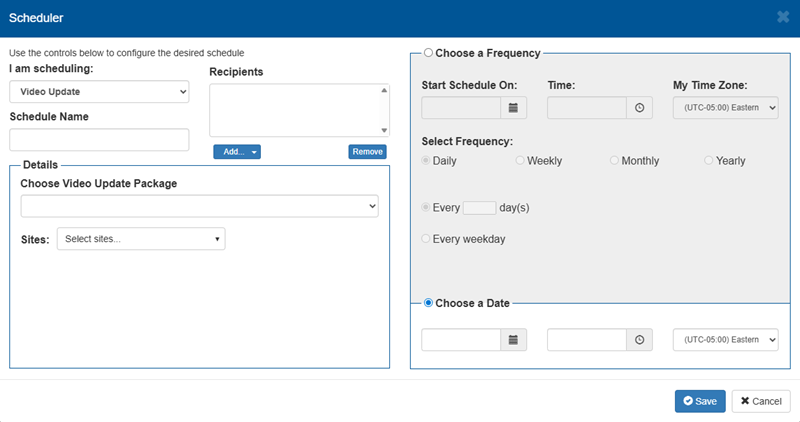
Video Update
The Video Update scheduled task provides the ability to schedule a planned update for kiosk terminal videos to take effect, a specific sites or all sites, at a specific date and time.
Schedule Name
The Schedule Name setting provides the ability to enter a unique, short identification name for the scheduled task.
Recipients
The Recipients setting provides the ability to specify a single or multiple email addresses and/or a single or multiple FTP destination(s) for the scheduled task.
This can be edited (recipients added or removed) after a scheduled task is created.
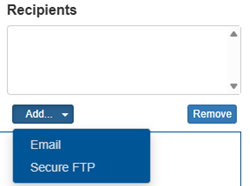
Add...
The Add... function provides a choice: Email or Secure FTP.
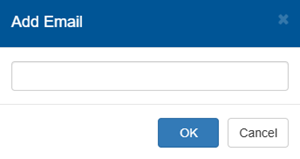
The Email recipient add function opens an Add Email dialog that provides the ability to specify an email address destination for the scheduled task.
Secure FTP
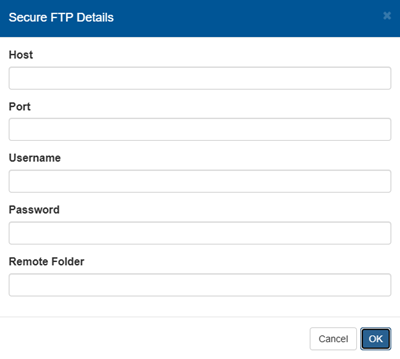
The Secure FTP recipient add function opens a Secure FTP Details dialog that provides the ability to specify an FTP destination for the scheduled task.
Details
The Details section' provides settings for the selected task. These settings are different, based on the task.
Choose a Frequency
The Choose a Frequency section provides settings for the days, dates, times, and frequencies the selected task occurs. The available settings are different, based on the task.
Schedule List
The Schedule List provides a list of all configured notifications, with basic information for each, organized in a table format.
Show 10 entries
The Show 10 entries function provides the ability to set the maximum number of scheduled tasks to display on each page in the Schedule Tasks panel. If the number of tasks exceeds this, page navigation functions are enabled at the bottom of the panel.
This function is set to 10 by default.
Description
The Description column provides a short string of text to help identify the notification. The notification's description is also a link that opens its settings.
Frequency
The Frequency column identifies the priority with which the corresponding alert notification is generated when it's triggered.
Date Created
The Date Created column identifies the date (month, day, and year) the alert notification was created.
The date is formatted as mm/dd/yyyy.
Actions
Notifications can be snoozed, turned on, or turned off.
Zzz (Snooze)
The Zzz (snooze) function provides the ability to snooze (pause) the sending of a notification for a predetermined amount of time so that the component may be serviced. During a snooze period, the corresponding notification will not be sent. The system will automatically resume sending notifications after the snooze period has elapsed.
On / Off
The On / Off function provides the ability to turn on the corresponding notification.
Edit
The Edit function provides the ability to turn off the corresponding notification.
Delete
The Delete function provides the ability to remove the corresponding notification from the list.
Currently...
The Currently... column identifies the corresponding notification's present status.
Page Navigation Functions
Page navigation functions are enabled at the bottom of the panel if the number of alerts exceeds the configured maximum number. The functions are visible, but disabled if the number of alerts does not exceed the maximum number.
First
The First function advances the alerts list to page 1.
Previous
The Previous function advances the alerts list to the prior page. It is disabled when the first page is open.
Page Number
The Page Number function advances the alerts list to the specific, user-entered page.
Next
The Next function advances the alerts list to the following page. It is disabled if no additional page is available.
Last
The Last function advances the alerts list to the final page.
Updated:: 042726