Enter Search Criteria (Tools)
The Enter Search Criteria panel is a DirectorX tool that provides users the ability to search for any data element in DirectorX by the use of advanced search and filtering criteria.
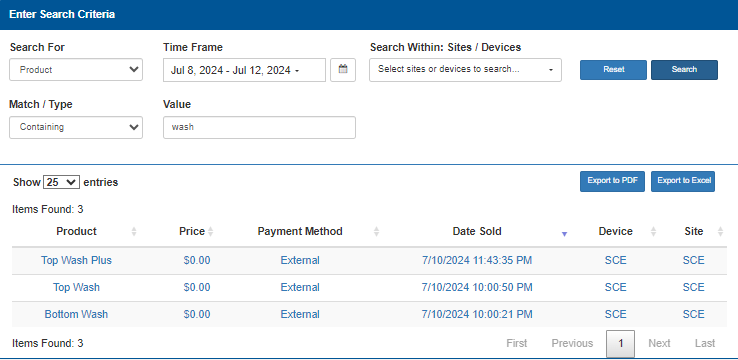
Search Tool
The search tool provides the ability to specify a number of search parameters, so that a search can be very narrow and specific, or broad and general.
Search For
The Search For search input provides the ability to search specific areas.
- Accounts
- Account History
- Alerts
- Devices
- Generated Codes
- Organizer Groups
- POS Codes
- Product
- Roles
- Sites/Stores/Locations
- Transactions
- Users
Time Frame
The Time Frame search input provides the ability to specify a certain time period as a search parameter.
Note: The Time Frame search input is listed as Not available for selection for searches that do not have corresponding data.
Search Within: Sites / Devices
The Search Within: Sites / Devices search input provides the ability to select sites or devices as a search parameter.
Note: The Search Within Sites / Devices search input is listed as Not available for selection for searches that do not have corresponding data.
Match / Type
The Match / Type search input provides the ability to select account type or account status as a search parameter.
Value
The Value search input provides the ability to enter a keyword or keywords as a search parameter.
Reset
The Reset function clears all search parameters and resets them to their default settings.
Search
The Search function generates the search, based on the configured parameters, and provides all matches in the search results list.
Search Results List
The Search Results List provides a list of all matches, based on the search tool inputs, in DirectorX, with basic information for each, organized in a table format. The columns and data in the results list vary, depending on the search inputs.
Show 25 entries
The Show 25 entries function provides the ability to set the maximum number of scheduled tasks to display on each page in the Schedule Tasks panel. If the number of tasks exceeds this, page navigation functions are enabled at the bottom of the panel.
This function is set to 10 by default.
Export to PDF
Select the Export to PDF function to generate and download a PDF file that contains the current search results data.
Export to Excel
Select the Export to Excel function to generate and download an XLSX file that contains the current search results data.
Product
The Product column provides the name of the wash product or service that was sold.
Price
The Price column provides the dollar amount received from the customer for the wash product or service that was sold.
Payment Method
The Payment Method identifies the payment used to purchase the product. External payments are codes that are issued through the register and pump sales. Credit payments are payment cards submitted at the kiosk terminal.
Date Sold
The Date Sold column provides the date and time the product was purchased.
The date and time format is MM/DD/YYYY HH:MM:SS AM/PM.
Device
The Device column provides the device where the product was sold.
Site
The Site column provides the site where the product was sold.
Page Navigation
Page navigation functions are enabled at the bottom of the panel if the number of search results exceeds the configured maximum number. The functions are visible, but disabled if the number of search results does not exceed the maximum number.
First
The First function advances the search results list to page 1.
Previous
The Previous function advances the search results list to the prior page. It is disabled when the first page is open.
Page Number
The Page Number function advances the search results list to the specific, user-entered page.
Next
The Next function advances the search results list to the following page. It is disabled if no additional page is available.
Last
The Last function advances the search results list to the final page.
Updated:: 042726