Alert Manager (Tools)
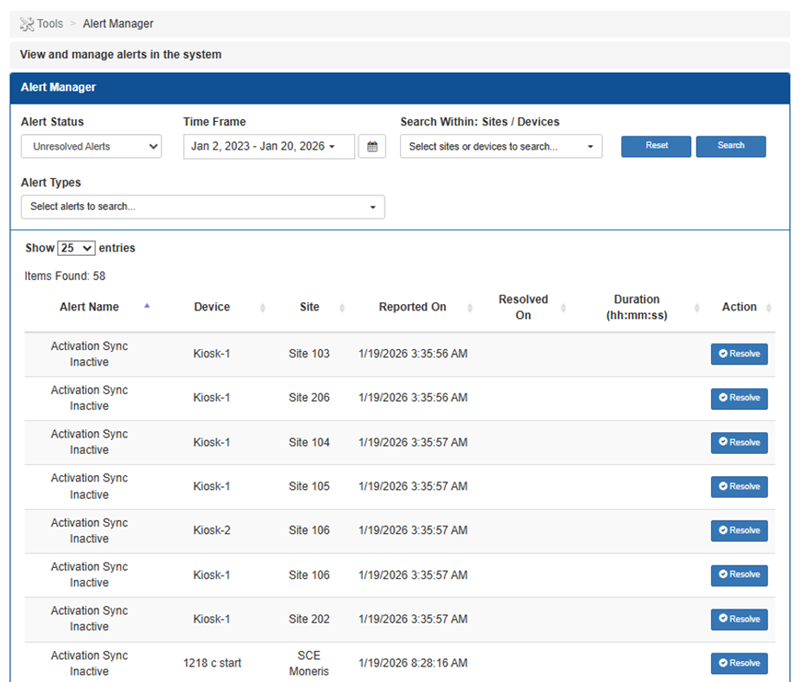
The Alert Manager panel provides the ability to find resolved, and unresolved, alerts based on time range, specific sites/devices, and/or alert type.
See also: Search for an Alert
Search
The Alert Manager provides a search tool to quickly locate a specific alert, or alerts, in the alerts list.
Alert Status
The Alert Status option provides the ability to search for alerts based on whether it's resolved or unresolved.
The default setting is All Alerts.
Time Frame
The Time Frame option provides the ability search for alerts based on the date or date range it occurred (its Reported On date and time, not its Resolved On date and time). If the user does not have the date the alert occurred, they will not see the unresolved alert in the request.
Search Within: Sites / Devices
The Search Within: Sites / Devices option provides the ability to search for alerts based on the site and device that generated the alert.
Alert Types
The Alert Types option provides the ability to search for alerts based on the alert type, for example Maintenance login.
Reset
The Reset function provides the ability to check and update the list with any alert notifications recorded since it opened.
Search
The Search function provides the ability to invoke an alerts search based on the selected search options. The Alerts List updates to display all matches.
Alerts List
The alert notification data is organized in a table.
Show 25 entries
The Show 25 entries function provides the ability to set the maximum number of alerts to display on each page in the Alerts panel. If the number of alerts exceeds this number, page navigation functions are enabled at the bottom of the panel.
This function is set to 25 by default.
Items Found
The Items Found value provides the total number of alert notifications in the list.
Alert Name
The Alert Name column provides the name of the terminal that generated the alert.
Device
The Device column provides the peripheral and alert notification text, formatted as a link.
Site
The Site column provides the location where the alert was generated.
Reported On
The Reported On column provides the date and time the alert was generated.
The format is displayed as MM/DD/YYYY HH:MM:SS AM/PM.
Resolved On
The Resolved On column provides the date and time the Resolve function was selected for the alert.
The format is displayed as MM/DD/YYYY HH:MM:SS AM/PM.
Duration (hh:mm:ss)
The Duration column provides the length of time the corresponding alert has been active.
The format is recorded and displayed as HOURS:MINUTES:SECONDS.
Action
The Action column provides a Resolve function to mark a corresponding alert as addressed.
Note: The Resolve function is only enabled initially for the Corporate Admin role. Staff with that role can then determine what other roles should have access to resolving alerts.
Page Navigation Functions
Page navigation functions are enabled at the bottom of the panel if the number of alerts exceeds the configured maximum number. The functions are visible, but disabled if the number of alerts does not exceed the maximum number.
First
The First function advances the alerts list to page 1.
Previous
The Previous function advances the alerts list to the prior page. It is disabled when the first page is open.
Page Number
The Page Number function advances the alerts list to the specific, user-entered page.
Next
The Next function advances the alerts list to the following page. It is disabled if no additional page is available.
Last
The Last function advances the alerts list to the final page.
Updated:: 042726