Notifier (Tools)
The Notifications panel provides the ability to create automatic notifications for kiosk hardware components, connectivity, and wash equipment. Notifications can be turned off or snoozed. The snooze function provides the ability to pause the distribution of a notification for 24 hours so the component may be serviced. The system will automatically resume notification distribution after the snooze period elapses.
See also: Add a New Alert Notification and Edit an Existing Alert Notification
Add New
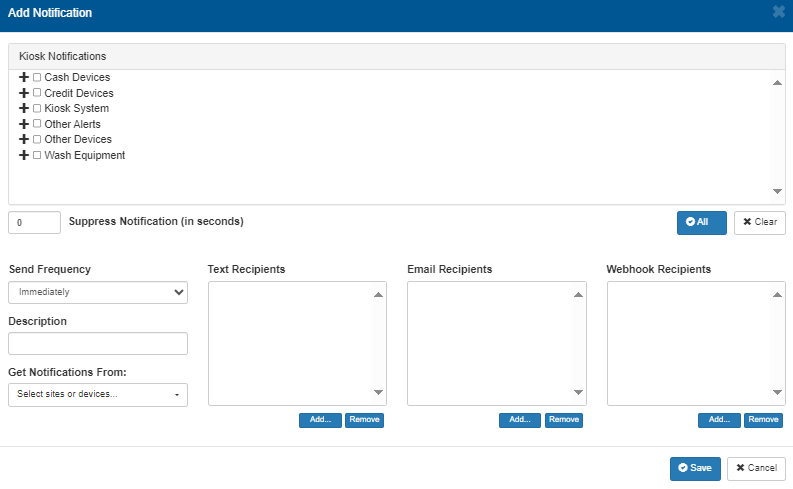
The Add New function creates a new notification, which can then be configured and enabled for use at a site or sites. Selecting the Add New function opens an Add Notification dialog.
Add Notification
The Add Notification dialog, which provides the settings and configuration for the new notification.
Kiosk Notifications
The Kiosk Notifications section provides the ability to select the component(s) from 6 categories. Multiple component
- Cash Devices
- Credit Devices
- Kiosk System
- Other Alerts
- Offline Devices
- Wash Equipment
All
The All function provides the ability to select all components for all 6 kiosk notification categories.
Clear
The Clear function provides the ability to remove all currently selected components for all 6 kiosk notification categories.
Suppress Notification (in seconds)
The Suppress Notification (in seconds) setting provides the ability to specify the number of seconds the new notification should be snoozed when the snooze function is selected for it.
Send Frequency
The Send Frequency setting provides the ability to specify how soon the notification should be sent after it's generated.
The default setting is Immediately.
Description
The Description setting provide the ability to optionally enter additional text about the notification and/or its purpose.
Get Notification From
The Get Notification From setting provide the ability to specify which site(s) and device(s) generate the alert.
Text Recipients
The Text Recipients section lists the phone numbers the notification alert is sent to as an SMS text message.
Add...
The Add... function provides the ability to add a phone number to the Text Recipients section.
Remove
The Remove function provides the ability to remove a phone number from the Text Recipients section.
Email Recipients
The Email Recipients section lists the email addresses the notification alert is sent to as an email message.
Add...
The Add... function provides the ability to add an email address to the Email Recipients section.
Remove
The Remove function provides the ability to remove an email address from the Email Recipients section.
Webhook Recipients
The Webhook Recipients section lists the web servers or application endpoints (URLs) the notification alert is sent to process as an HTTP POST request.
Add....
The Add... function provides the ability to add a web server or application endpoint to the Webhook Recipients section.
Remove
The Remove function provides the ability to remove a web server or application endpoint from the Webhook Recipients section.
Save
The Save function provides the ability to commits the changes and add the new alert to the system.
Cancel
The Cancel function provides the ability to abandon the changes for the new alert.
Notifications List
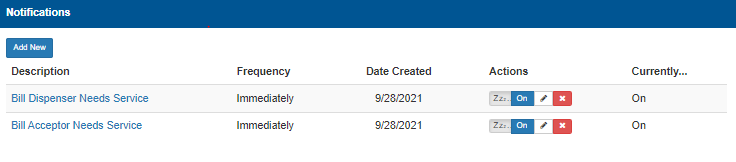
The Notifications List provides a list of all configured notifications, with basic information for each, organized in a table format.
Description
The Description column provides a short string of text to help identify the notification. The notification's description is also a link that opens its settings.
Frequency
The Frequency column identifies the amount of time that must pass before the corresponding alert notification is generated when it's triggered. Most notifications are configured to be sent Immediately after they're generated, but they can alternatively be configured to wait a configured amount of time before they are sent.
Date Created
The Date Created column identifies the date (month, day, and year) the alert notification was created. This helps track when the alert was added to the system for auditing and life cycle purposes.
The date is formatted as mm/dd/yyyy.
Actions
The Actions column provides functions to manage a notification. Functions are provided to temporarily snooze a notification, enable or disable a notification, edit a notification, or delete a notification.
Zzz (Snooze)
The Zzz (snooze) function provides the ability to snooze (pause) the sending of a notification for 24 hours, so that the component may be serviced. During a snooze period, the corresponding notification will not be sent. The system will automatically resume sending notifications after the snooze period has elapsed. The snooze time can be extended by selecting it again.
On | Off
The On | Off function provides the ability to enable or disable the corresponding notification without deleting it. When enabled the system will generate the alert according to its configuration; when disabled the alert will not generate when its trigger(s) or conditions occur.
Edit
The Edit function provides the ability to open and modify the notification’s settings.
Delete
The Delete function provides the ability to remove the corresponding notification from the list.
Currently...
The Currently... column identifies whether the notification is enabled (On), or disabled (Off), so that it'll be generated when its event condition occurs.
Updated:: 042726