Activations Report (Reporter)
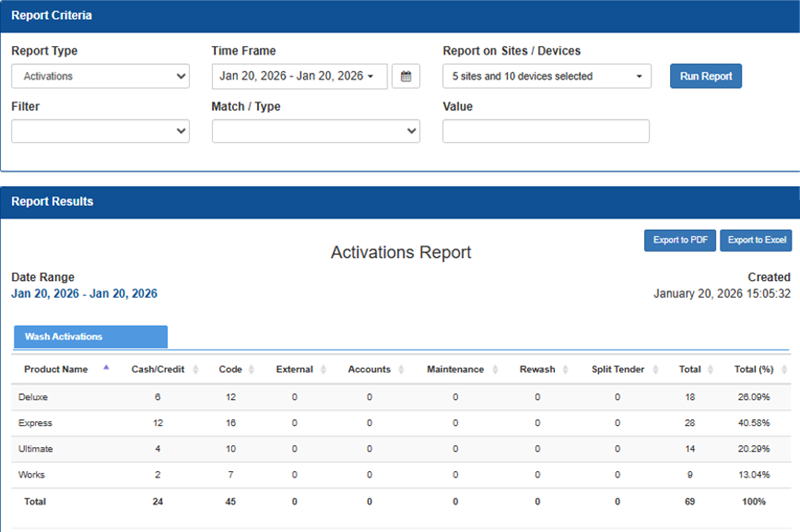
The Activations Report provides information for wash activations, self-serve activations (if applicable), and added service activations (if applicable).
Important: This report can be automatically generated and sent to email recipients in the Scheduled Tasks (Tools) panel.
Date Range
The Date Selector provides the ability to specify the time frame for which to view activations data:
- Today
- Yesterday
- This Week
- Last Week
- This Month
- Last Month
- Quarterly
- Last Quarterly
- Half Year
- Last Half Year
- This Year
- Last Year
Calendar Selector
The Calendar Selector provides the ability, in addition to the Date Selector options, to specify the date for which to view activations data.
Export to PDF
Select the Export to PDF function to generate and download a PDF file that contains the current Activations Report data.
Export to Excel
Select the Export to Excel function to generate and download an XLSX file that contains the current Activations Report data.
Created
The Created date provides the month, day, year, and time (hour, minutes, and seconds) the report was generated.
Wash Activations
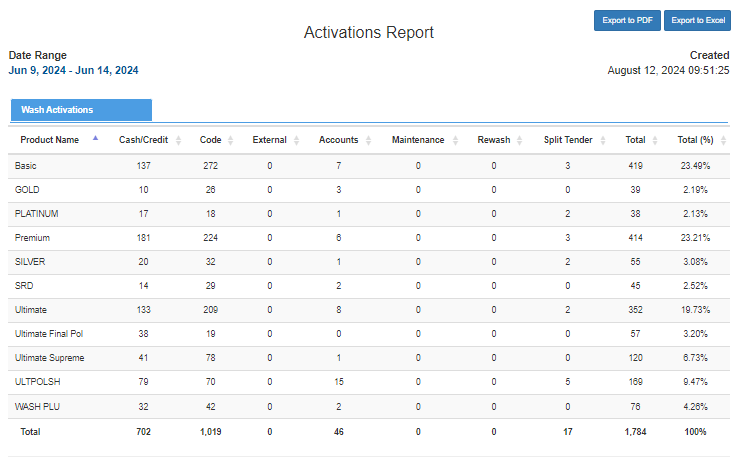
The Wash Activations data is listed in a table format, with the following information for each wash product: tendered via cash/credit, wash code, house account, employee maintenance, rewash, split-tender, and the total number along with the percentage of all washes that the corresponding wash represents.
Note: Use the Export to Excel function to view data by site, device, and wash package without having to generate the report for each site.
Product Name
The Product Name column provides the name of the wash package sold on the screen
Cash/Credit
The Cash/Credit column provides the number of transactions tendered by cash or credit card payment directly at the self-service kiosk for the corresponding product.
Code
The Code column provides the number of codes purchased through the point-of-sale system, using redemption or sale codes entered and processed by the attendant or sales terminal.
External
The External column provides the number of activations that are from third-party mobile app API vendors, for wash trigger, code, and offline back up codes redeemed.
Accounts
The Accounts column provides the number of house account redemptions completed at the kiosk terminal. These are authorized against pre-established customer or corporate accounts rather than paid at the time of service.
Maintenance
The Maintenance column provides the number of washes activated by a site employee for maintenance purposes. To appear as a maintenance transaction, the account must be configured as a maintenance account in Connector.
Rewash
The Rewash column provides the number of washes re‑issued by a site employee to resolve a customer service issue. Rewash transactions must be issued from the Sales screen in Connector to be recorded correctly.
Split Tender
The Split Tender column provides the number of payments that use multiple payment methods within a single transaction (for example, part cash and part card), recorded as a split-tender sale.
Total
The Total column provides the sum of all wash activations for the corresponding product.
Total (%)
The Total (%) column provides the percentage of all wash activations that the corresponding product represents.
Touch Wash
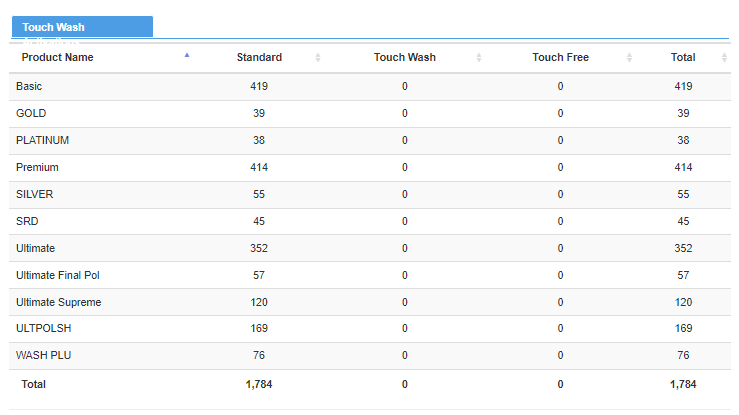
The Touch Wash section provides standard, touch wash, and touch free data in a table format.
Product Name
The Product Name column provides the name of the package sold as shown on the screen (for example, Good, Better, Best). Each row’s data corresponds to this product.
Standard
The Standard column provides the number of transactions for the Standard wash package during the reporting period (absolute count of Standard purchases).
Touch Wash
The Touch Wash column provides the number of transactions for the Touch Wash method during the reporting period (count of purchases where the touch/manual wash process was used).
Touch Free
The Touch Free column provides the number of transactions for the Touch Free wash method during the reporting period (count of purchases where the touch‑free/automatic wash process was used).
Total (Column)
The Total column provides the sum of the standard, touch wash, and touch free values for each wash product.
Total (Bottom Row)
The Total row at the bottom of the table provides the sum of each column.
Added Services
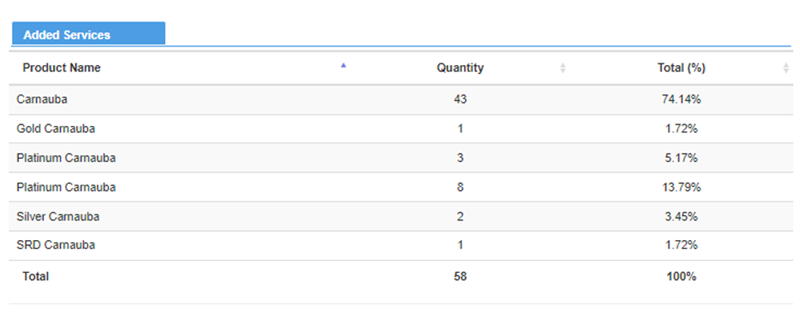
The Added Services section provides quantity and percentage data for each wash extra service.
Product Name
The Product Name column provides the name of the added service or product (for example, Carnauba, Gold Carnauba, Platinum Carnauba). Each row’s data corresponds to one specific added-service item shown in the table.
Quantity
The Quantity column provides the number of units of that added service sold or activated during the reporting period (absolute count per product).
Total (%)
The Total (%) column provides the product’s share of the total added-service volume, shown as a percentage (product Quantity ÷ total Quantity × 100), useful for quickly seeing each item’s relative contribution.
Total (Bottom Row)
The Total row located at the bottom of the table aggregates the table: the summed Quantity column for all listed added services and the overall 100% value in the Total (%) column, representing the full-period totals.
Updated: 042726