Code Generator (Marketing)
The Code Generator enables sites to create one or more single-use wash or discount codes in DirectorX. A maximum of 1,000 codes can be generated at a time. Codes provide sites the ability to issue free wash codes to resolve customer issues; sites also use the code generator for single-use free or discounted wash codes for marketing campaigns, cross-marketing opportunities with 3rd-party businesses, fund raising, and donations.
Note: See "Create Single-Use Codes" for steps to generate single-use codes, and "Send Single-Use Codes" for steps to distribute the generated codes.
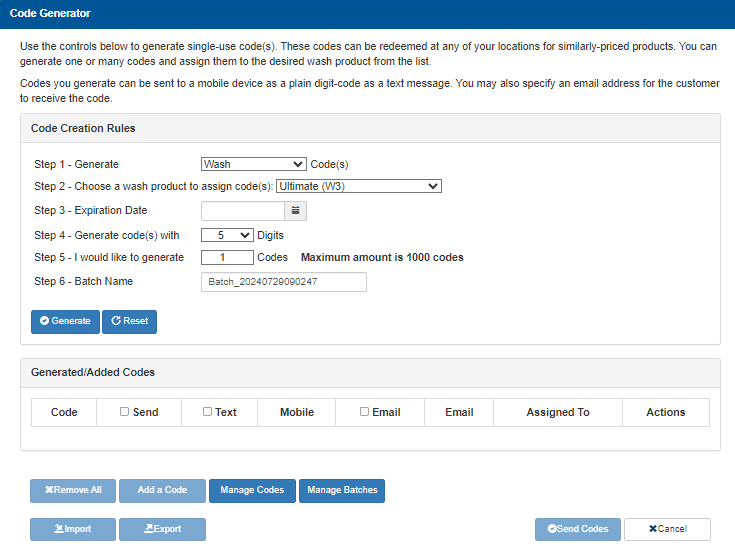
Code Creation Rules
The Code Creation Rules section provides step-based configuration settings, as well as the Generate function, to generate a set of single-use codes for either a free wash or discount on a wash product.
Wash Codes vs. Discount Codes
Free wash code configuration requires 6 settings (steps), while discount wash code configuration requires 7 settings (steps) (a discount amount must be configured).
|
Wash |
Discount |
|
Step 1 - Generate _ Code(s) |
Step 1 - Generate _ Code(s) |
|
Step 2 - Choose a wash product to assign code(s) |
Step 2 - Choose a wash product to assign code(s) |
|
Step 3 - Expiration Date |
Step 3 - Discount Amount ($) |
|
Step 4 - Generate code(s) with _ Digits |
Step 4 - Expiration Date |
|
Step 5 - I would like to generate _ Codes |
Step 5 - Generate code(s) with _ Digits |
|
Step 6 - Batch Name |
Step 6 - I would like to generate _ Codes |
|
N/A |
Step 7 - Batch Name |
Generate _ Code(s)
The Step 1 - Generate _ Code(s) setting provides the ability to specify the type of codes to generate. There are two options, one for Wash and one for Discount.
Wash
Select Wash to provide a (single-use) free wash with each generated code.
Discount
Select Discount to provide a (single-use) discount on a wash service with each generated code.
Choose a wash product to assign code(s)
The Step 2 - Choose a wash product to assign code(s) setting provides the ability to specify the specific wash product to which the generated code applies.
Important: Be sure to select a wash that is available at the site where the codes will be redeemed.
Discount Amount ($)
The Discount Amount ($) setting provides the dollar value to deduct from the wash product selected in Choose a wash product to assign code(s). This setting is only available when Generate _ Code(s) is set to Discount.
Important: Do not enter a value greater than the price of the wash product to which the discount applies.
Expiration Date
The Expiration Date setting provides the day, month, and year on which customers can no longer redeem the code generated in this batch.
Important: The last day the codes can be redeemed is the day prior to the one selected here.
Generate code(s) with _ Digits
The Generate code(s) with _ Digits setting provides the length, in numeric characters, each code is comprised of. Generated codes should be more digits than what the site's POS system (register/pumps) codes issue. Most POS systems issue 5 or 6 digits; use 7 digits or more. However, if the site doesn't issue wash codes from the register or pumps, they can use 5+ for generated codes.
The code lengths that are available to be selected for this setting are 6 or more.
I would like to generate _ Codes
The I would like to generate _ Codes setting provides the number of codes to generate in this code batch.
Important: The maximum number of codes that can be generated for any code batch, wash or discount, is 1000. If more codes are needed, sites can generate additional code batches.
Batch Name
The Batch Name setting provides the ability to enter a label to help identify the code batch in DirectorX.
Generate
The Generate function creates the code batch based on the configured settings, and populates the Generated/Added Codes section (at the bottom of the panel) with the generated code batch.
Important: The codes in a generated code batch can't be used or redeemed at a site's kiosk terminal(s) until they're activated. A code batch is activated by either exporting the code batch to Excel, or sending the code batch to a recipient (such as a site administrator employee) via email or SMS text message. See below for more information.
Reset
The Reset function clears all configured settings.
Generated/Added Codes
The Generated/Added Codes section, located at the bottom of the Code Generator panel, provides the ability to activate the generated codes by exporting them, or sending them via email or SMS text message.
Important: The codes in a generated code batch can't be used or redeemed at a site's kiosk terminal(s) until they're activated. A code batch is activated by either exporting the code batch to Excel, or sending the code batch to a recipient (such as a site administrator employee) via email or SMS text message. See below for more information.
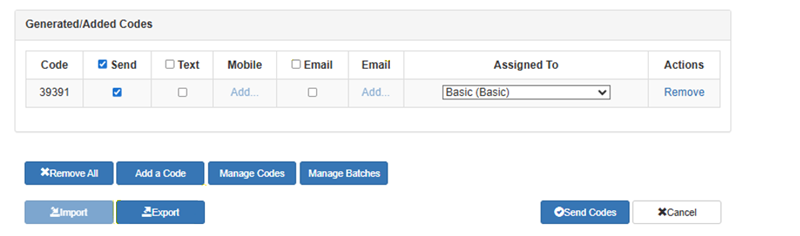
Code
The Code column provides the generated code value, with available columns for sending it via text message or email message.
Send
The Send column provides the ability to configure the corresponding code to be distributed via text message or email message. It must be selected to send (and enable) via the Text and Email distribution options.
Text
The Text column provides the ability to distribute the corresponding code or codes via text message. Selecting it enables the Mobile column's Add... function for the code.
Mobile
The Mobile column provides the ability to specify, via the Add... function, the mobile phone number to which the corresponding code is to be distributed. The Add... function is only enabled if the Text option is selected for the code.
The Email column provides the ability to distribute the corresponding code or codes via email message. Selecting it enables the other Email column's Add... function for the code.
Important: Email service providers, as well as the email recipients, may identify the email message sender (DirectorEServices) as spam/junk. Sites should alert email recipients that the free/discount wash code will come from the DirectorEServices email account.
The second Email column provides the ability to specify, via the Add... function, the email address to which the corresponding code is to be distributed. The Add... function is only enabled if the first Email column option is selected for the code.
Assigned To
The Assigned To column provides the ability to select the wash product to which the code applies.
Actions
The Actions column provides a Remove function that can be used to remove the corresponding code from the list. Use this function to remove a single, specific code.
Caution: Removed codes can't be recovered. Use this function with care.
Code Generator Functions
Functions for managing codes are provided at the bottom of the Code Generator panel.
Remove All
The Remove All function removes every generated code listed in the Generated/Added Codes section.
Caution: Removed codes can't be recovered. Use this function with care.
The function is only enabled if at least one code is currently listed in the Generated/Added Codes section. If the section is empty, the function is disabled.
Add a Code
The Add a Code function provides the ability to add 1 (one) more code to the list before activating the codes. The code's configuration will be identical to the rest of the listed codes, but with a new, unique code value.
The function is only enabled if at least one code is currently listed in the Generated/Added Codes section. If the section is empty, the function is disabled.
Manage Codes
The Manage Codes function provides the ability to change the wash package and expiration date for a single code.
Manage Batches
The Manage Batches function provides the ability to change the wash package and expiration date for all codes in a batch.
Export
The Export function provides the ability to activate codes by exporting them from DirectorX to an Excel file.
The function is only enabled if at least one code is currently listed in the Generated/Added Codes section. If the section is empty, the function is disabled.
Send Codes
The Send Codes function provides the ability to distribute the codes in the Generated/Added Codes section via text message or email message, according to the configuration settings. This activates the codes.
The function is only enabled if at least one code is currently listed in the Generated/Added Codes section. If the section is empty, the function is disabled.
Cancel
The Cancel function provides the ability to terminate code batch configuration and distribution configuration operations.
Updated: 042726