Create an Account Program Template
Use the steps in this topic to create an account program template.
See also: Edit an Existing Account
Tools Required
- DirectorX user account with access to the Account Program panel.
Steps
The steps below are organized into three sections: add the new account, and then configure either a prepaid account or a loyalty account.
Add a New Account Program
The steps in this section
- Log In to DirectorX
- Select Marketing.
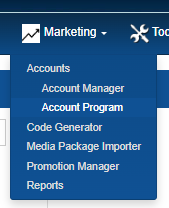
- Select Account Program. The AccountPrograms panel opens.
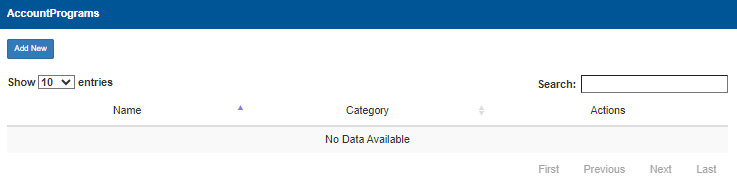
- Select Add New. The AccountPrograms dialog opens.
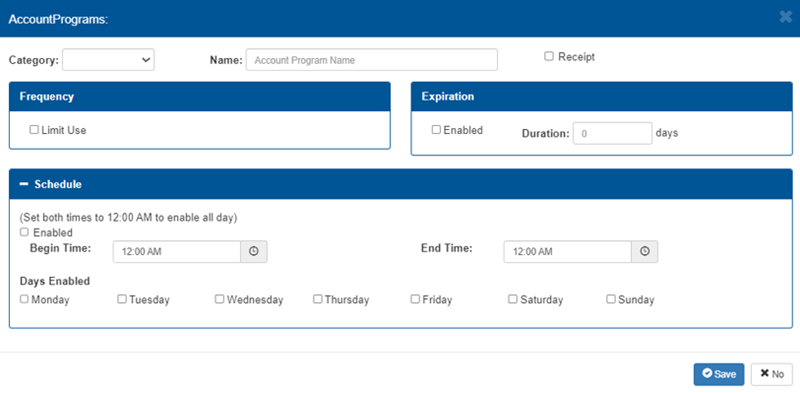
Configure a Prepaid Account Program
Use the steps in this section to configure the new account template for a prepaid program.
- In Category, select Pre-paid.
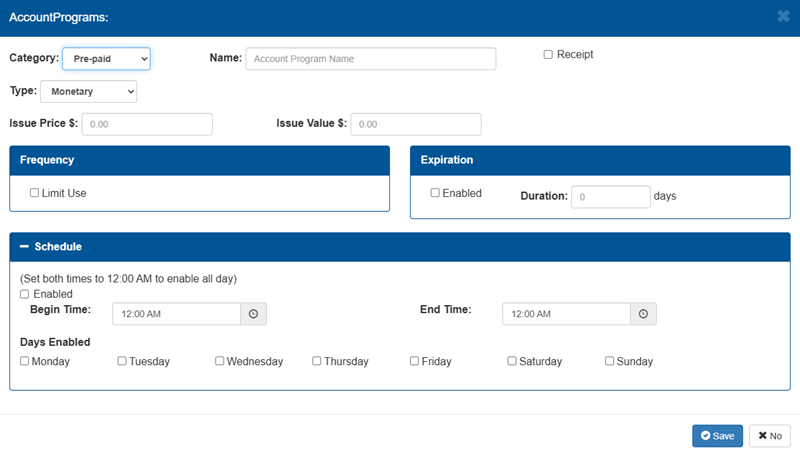
- In Name, enter text to help identify the new prepaid account in the application and on reports.
- Select Receipt to print a receipt for customers (option only available for pre-paid accounts).
- In Issue Price ($), enter the amount required to purchase the prepaid.
- In Issue Value ($), enter the amount assigned to the purchased prepaid.
- Navigate to the Frequency section.
- Select Limit Use to configure the maximum number of uses per day, week, month, or year, if applicable for this account.
- Navigate to the Expiration section
- Select Enabled to configure an expiration date, if applicable for this account.
- Navigate to the Schedule section.
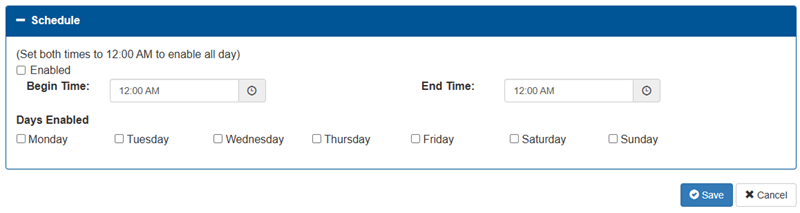
- Configure a Begin Time and End Time, along with Days Enabled, if applicable for this account.
- Select Save. The changes are saved.
Updated: 042726