Create an Account
Use the steps in this topic to create and configure a new account in DirectorX:
See also: Edit an Existing Account and Delete an Existing Account
Tools Required
- DirectorX user account with access to the Account Manager panel.
Steps
- Log In to DirectorX
- Select Marketing.
- Select Accounts.
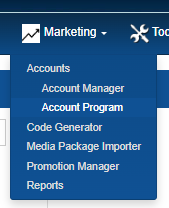
- Select Account Manager. The Accounts panel opens.
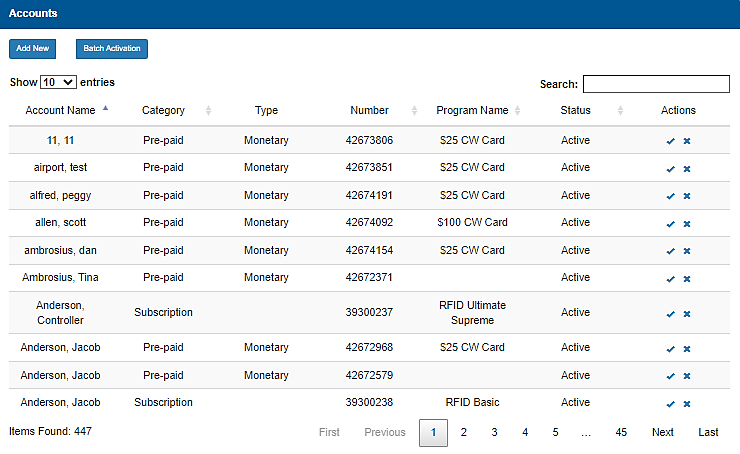
- Select Add New. The Account dialog opens.
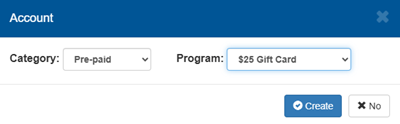
- In Category, select the account type, for example, Pre-paid.
- In Program, select the program, for example, $25 Gift Card.
- Select Create. The dialog closes and the Edit your Account panel opens.
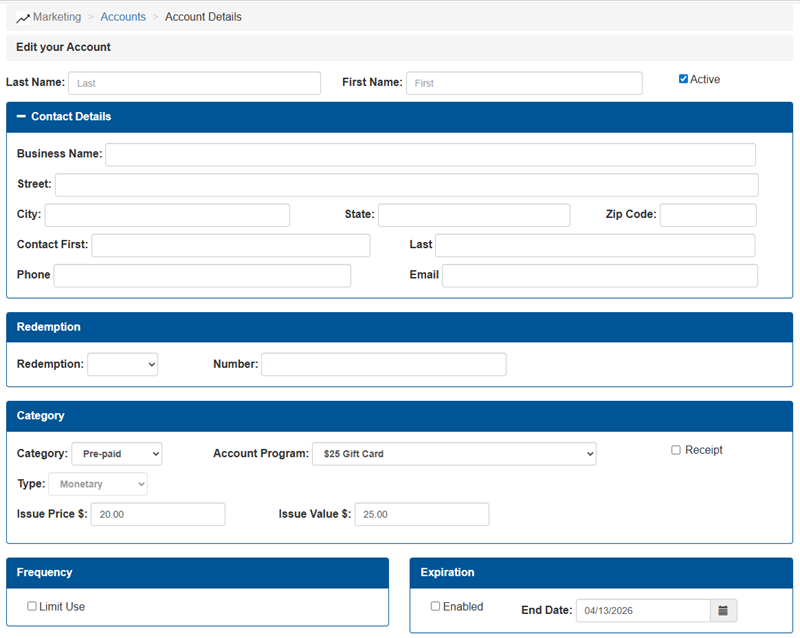
- In Last Name, enter a last name for the account.
- In First Name, enter a first name for the account.
- Verify Active is selected.
- Navigate to the Contact Details section.
- Configure the contact information for the account.
- Navigate to the Redemption section.
- In Redemption, select the redemption identification method, for example, Barcode.
- In Number, enter the corresponding identification code.
- Navigate to the Category section.
- Verify the settings are correct.
- Navigate to the Frequency section.
- Select Limit Use to configure the maximum number of uses per day, week, month, or year, if applicable for this account.
- Navigate to the Expiration section
- Select Enabled to configure an expiration date, if applicable for this account.
- Navigate to the Schedule section.
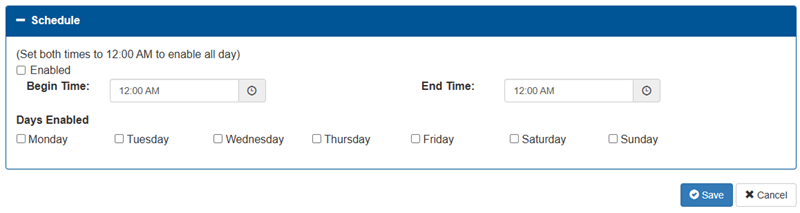
- Configure a Begin Time and End Time, along with Days Enabled, if applicable for this account.
- Select Save. The changes are saved.
Updated: 042726