Generate a Marketing Report
Use the following steps to manually generate a marketing report from the Report Criteria panel. The report generates below the report parameters, in a Report Results section, where it can also be exported to a PDF or Excel file.
See also: Schedule a Report to Generate and Send
Steps
- Log In to DirectorX
- Select Marketing.
- Select Reports. The Report Criteria panel opens.
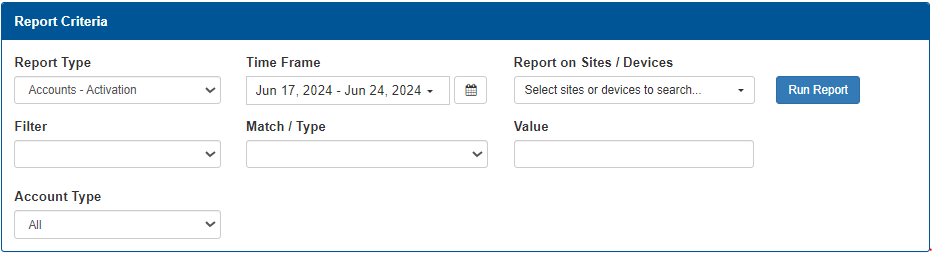
- In Report Type, select the report to generate.
- In Time Frame, select the date range for the report.
- In Report on Sites / Devices, select the sites and/or devices to include in the report.
- In Filter, select the account number or account type for the report.
- In Match / Type, select a match or type for the report.
- In Value, enter the Match / Type search parameters for the report.
- In Account Type, select an account type for the report.
- Select Run Report. Reports matching your search will be populate under the Report Results section.
Updated: 040126