Edit a User Role
Use the steps below to change the description and/or permissions configured for an existing user role in DirectorX. Roles are edited from the Role Manager.
Note: See Add a New User Role to create and configure a new user role.
Tools Required
- User account with the following Roles Manager permissions (Privileges): Edit Role and View Role.
Steps
- Log In to DirectorX.
- Select Admin>Role Manager. The Role Manager panel opens.
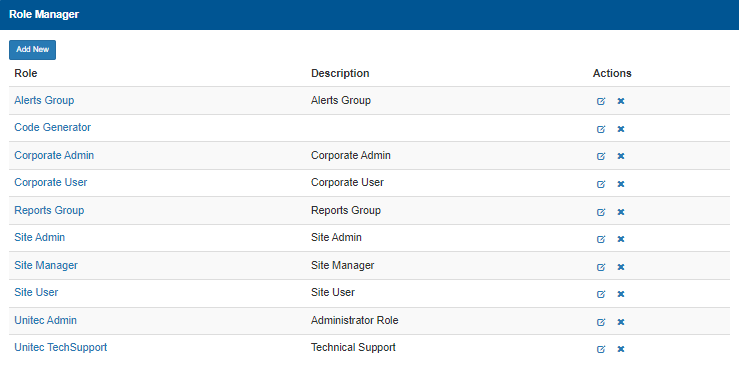
- Locate the user role to edit.
- Under Actions, select Edit for the corresponding user role.
- Update the description and/or permissions for the user role.
- Select Save.
Updated: 042726