Add a New User
Use the steps below to add a new user in DirectorX. Users are added from the User Manager.
Tools Required
- User account with the following Roles Manager permissions (Privileges): Assign Role and View Role.
- User account with the following User Manager permissions (Privileges): Add User and Assign any Group.
Steps
- Log In to DirectorX.
- Select Admin>User Manager. The User Manager panel opens.
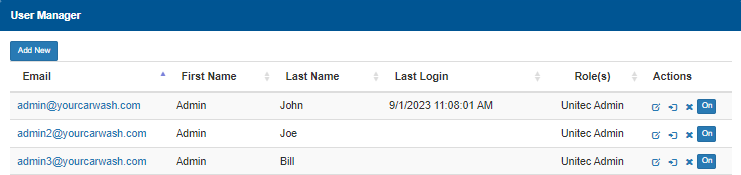
- Select Add New. The Add New User dialog opens.
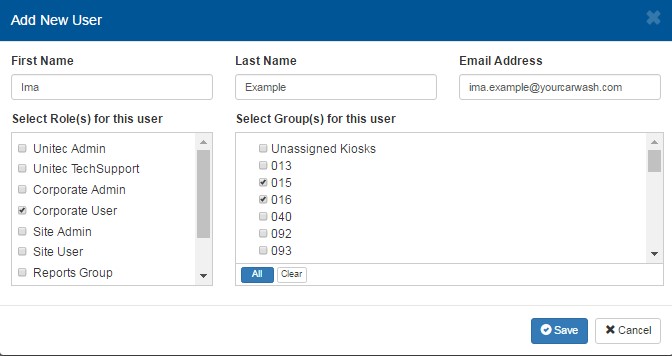
- In First Name, enter the user's given name.
- In Last Name, enter the user's surname.
- In Email Address, enter the user's email address.
- In Select Role(s) for this user, select only one role to which the new user has permission to perform. Important: Add a new user role if none of the existing roles have all the permissions (privileges) the user will require.
- In Select Group(s) for this user, select each group (location) the new user has permission to access.
- Select Save. DirectorX will email that new user a link, valid for 24 hours, and a client code to activate the user account's access by creating a password. Note: The password must contain one uppercase character, one number, and one special character.
Updated: 042726